We’ve all been there. You want to tag 400 family dinner photos with the same label so you can actually find them later, or you need to geotag a bunch of photos from a camera without GPS. Doing that one photo at a time is nobody’s idea of fun.
Batch Edit fixes that. It’s been the #1 most requested feature since PhotoPrism’s early days, and it’s now available as part of the November 2025 release.
How it works
Step 1: Select your photos
Browse your library and click the select icon on each photo to add it to the clipboard. You can also:
- Shift+click to extend a selection
- Apply search filters first, then select from the filtered results
The selection counter in the toolbar tells you how many photos you’ve picked.
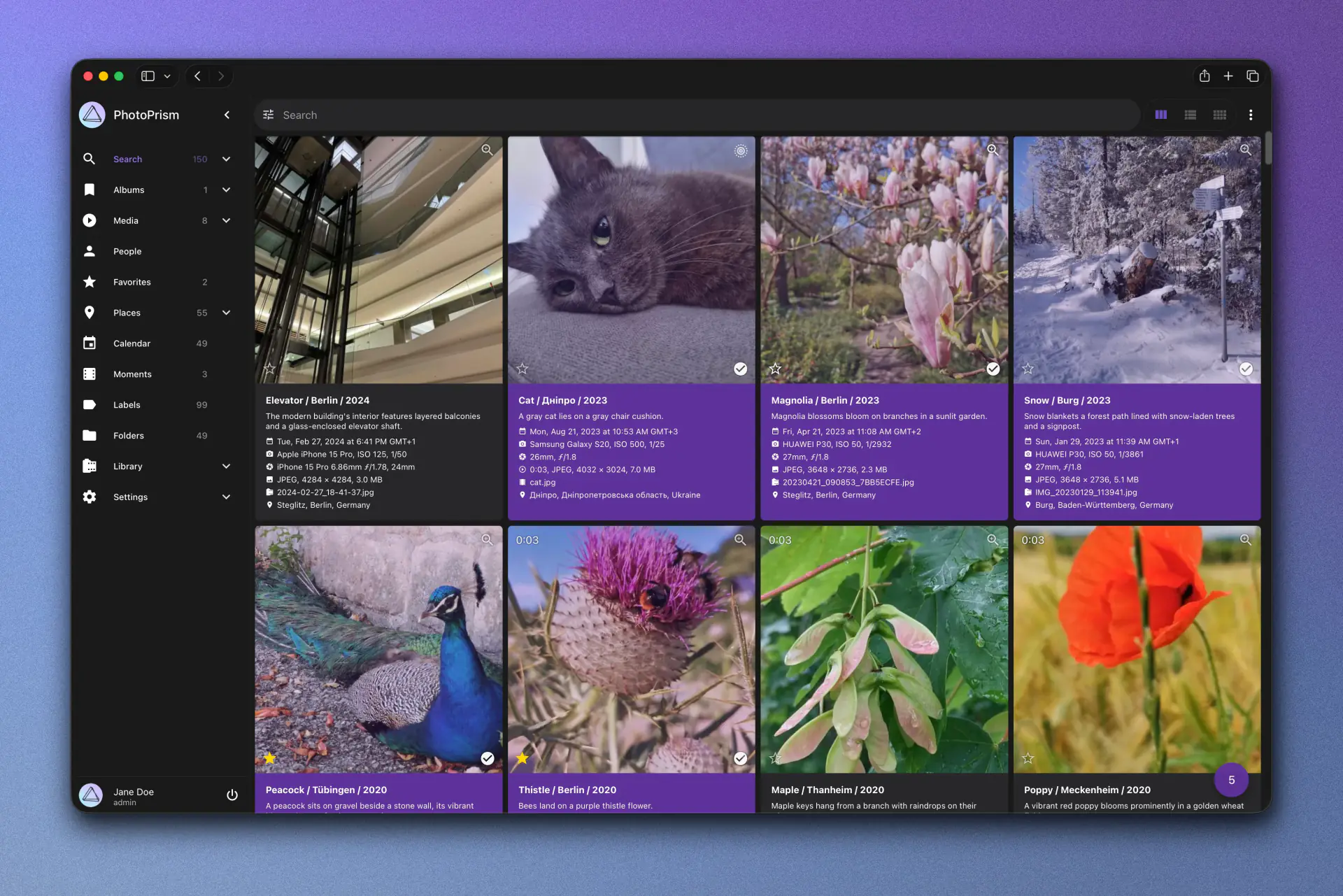
Selecting multiple photos from a filtered search result.
Step 2: Open the batch edit dialog
With photos in your clipboard, click the Edit button in the toolbar. The batch edit dialog opens with a form where you can update all common fields.
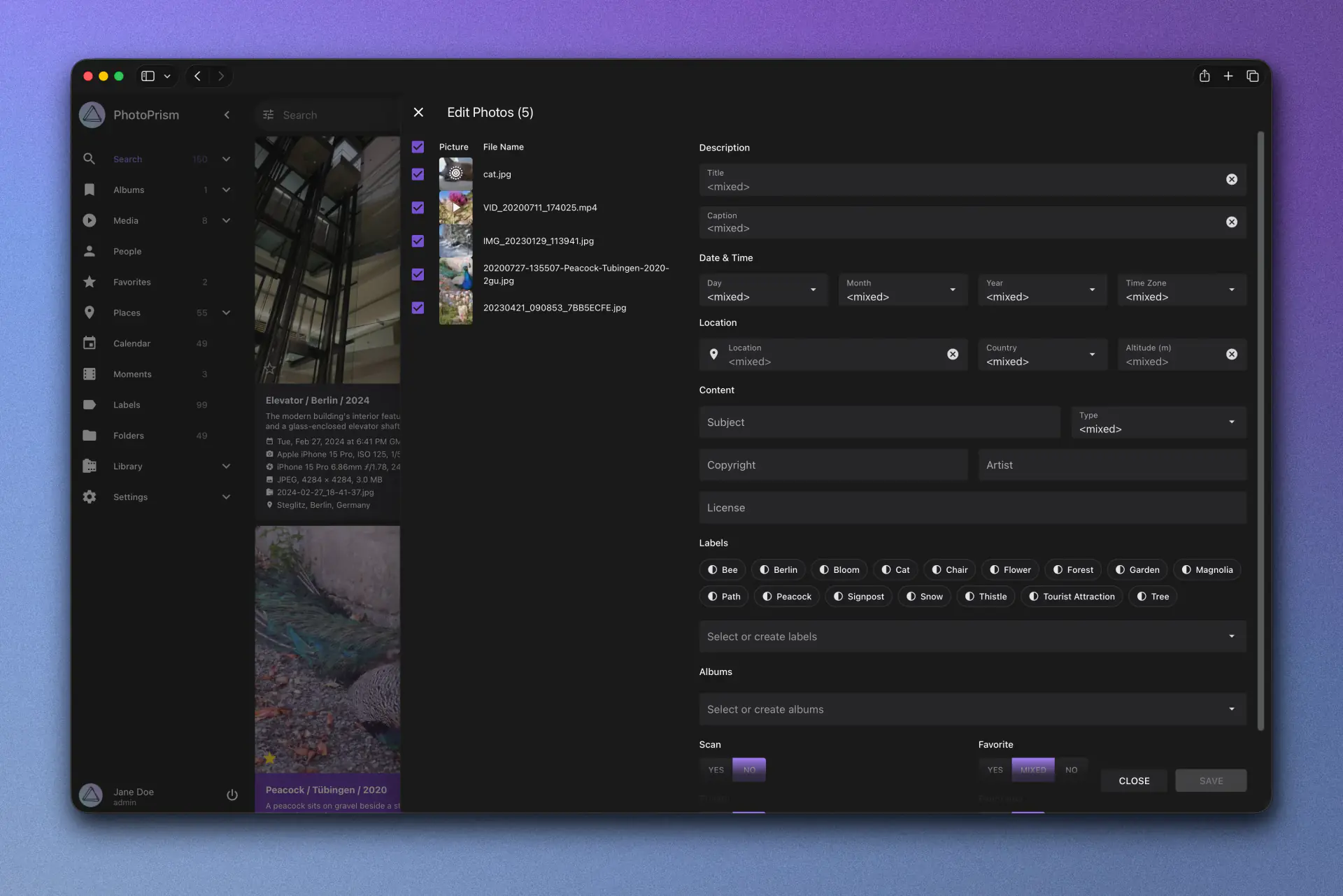
The Batch Edit dialog with the Description, Date & Time, and Location sections visible and mixed values across the selection.
Step 3: Make your changes
Edit any combination of fields in the form. Only the fields you actually change get applied. Everything else stays as it was.
When you’re done, hit Save. PhotoPrism updates all selected photos in one go.
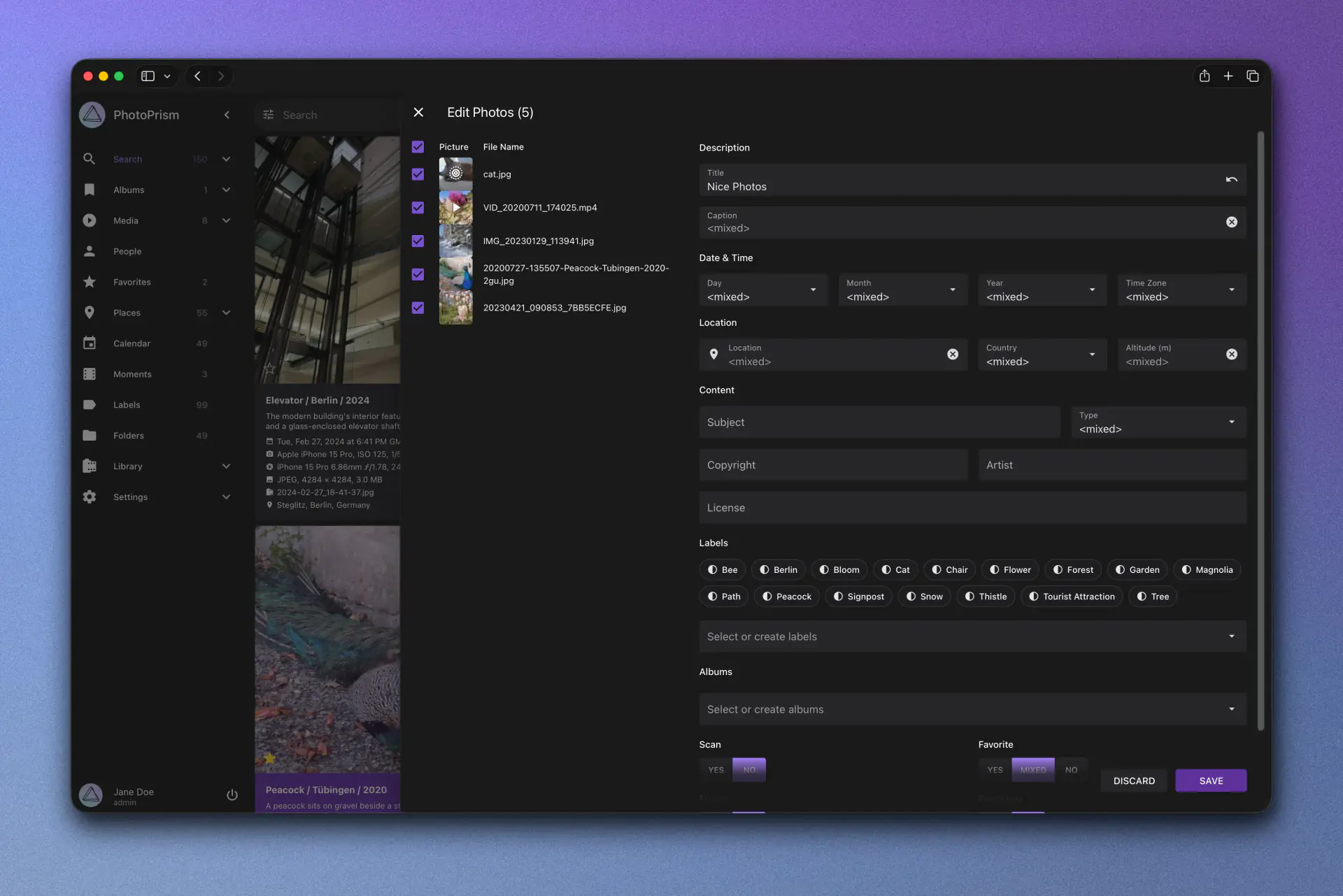
Entering a shared title (‘Nice Photos’) for all selected photos before saving — fields you don’t edit stay as they are.
What can you edit?
Here’s the full list of fields available for bulk updates, grouped the same way as the dialog itself.
Description
- Title: give a shared title to a set of photos (e.g., “Beach Sunset, Antalya”)
- Caption: add or replace descriptions
Date & Time
- Day, month, year, and time zone: correct the date for scanned analog photos or fix timezone mismatches across a whole selection
Location
- Latitude, longitude, country, and altitude: geotag photos taken with cameras that don’t have GPS (DSLRs, film scanners, etc.). You can also set the location by picking a point on the map
Content
- Subject and type: describe what’s in the picture and change the media type classification
- Artist, copyright, and license: useful for photographers who need consistent attribution across a shoot
Labels & Albums
- Albums: add photos to one or more albums, or remove them
- Labels: apply or remove labels for better organization
Flags
- Scan: mark photos as scanned documents or analog scans, distinct from digital originals
- Panorama: flag wide-angle or stitched panoramic shots
- Favorite and Private: toggle either flag across an entire batch at once
Handling mixed values
What happens when your selected photos have different values for the same field, say five different titles?
Batch Edit shows a “Mixed values” placeholder. You can type a new value (which replaces all existing values across the selection), clear the field to delete all existing values, or leave it alone (each photo keeps its original). You won’t accidentally overwrite something you didn’t mean to touch.
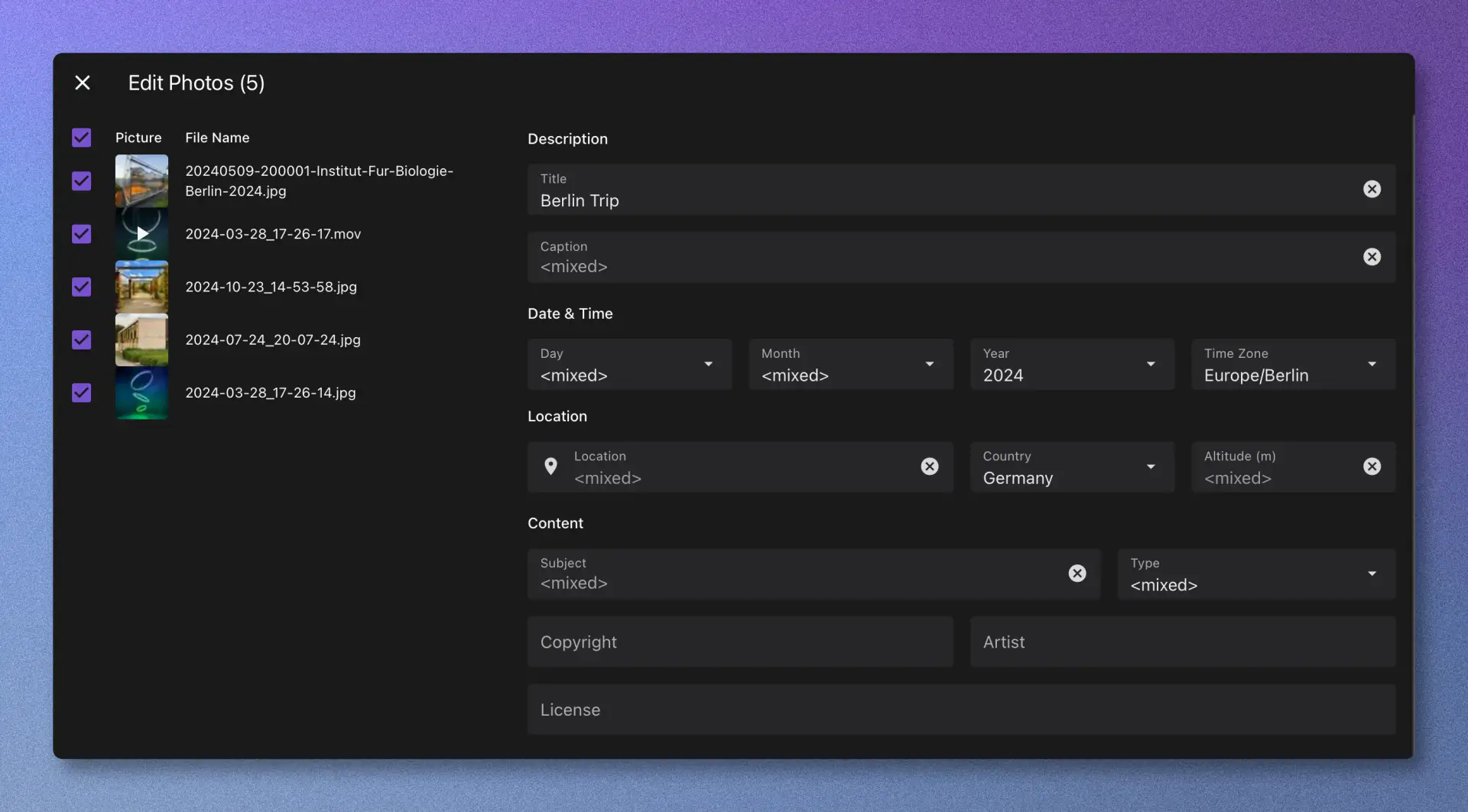
Mixed values indicator — Caption, Subject, Day/Month, Location, and Type all show the ‘Mixed values’ placeholder while Title and Year have shared values across the selection.
Real world use cases
Vacation photo cleanup. You just got back from a trip. Add a location, tag all 500 photos with an album, and apply labels. Takes under a minute.
Family archive digitization. You scanned 200 old family photos. No date, no location, no metadata. Batch Edit lets you fill in the basics in a few passes.
Professional workflow. You’re a photographer delivering a wedding shoot. Set the artist name, copyright notice, and license across the entire set before exporting.
Performance and safety
Batch Edit handles large workloads:
- Up to 999 photos per batch
- If two users (or two browser tabs) edit the same photo at the same time, PhotoPrism detects the conflict and prevents data loss
- Changes are applied atomically; if something fails mid-batch, your data stays consistent
Get started
Batch Edit is available in the March 2026 release. Update your instance and give it a try.
If you have feedback or want to share how you’re using it, head over to GitHub Discussions.